|
| |
PLEASE
NOTE:
Fax has been phased-out at BUF Technology!
For facsimile-type messages, please email photo to:
buftechnologyinfo@buftek.com |
|
New - prices on Sport-HD
products!
HD Replay Recorder Channels Slashed by $6,000!
See PRICE LIST
|
|
Simplicity:
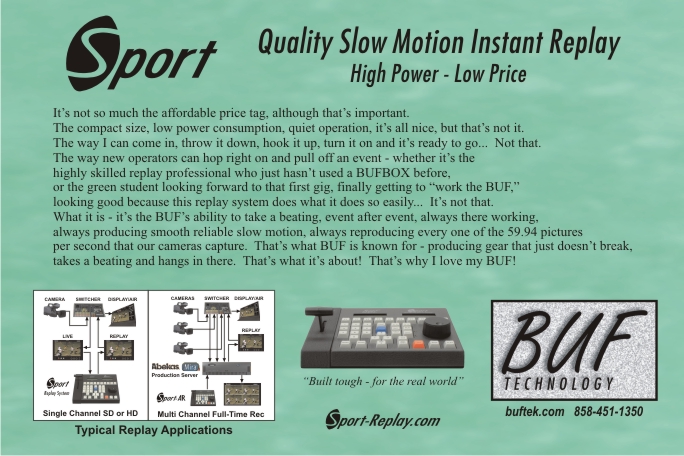
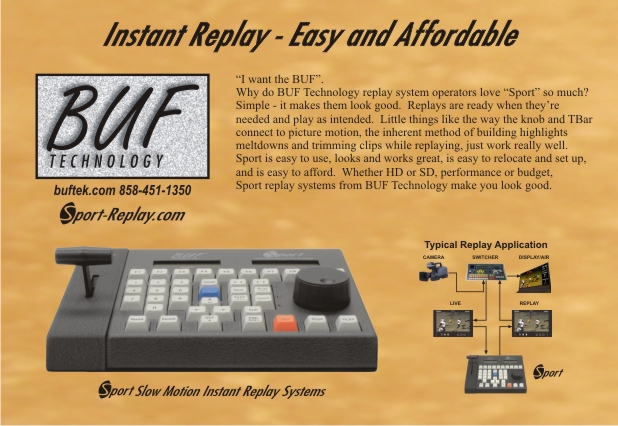
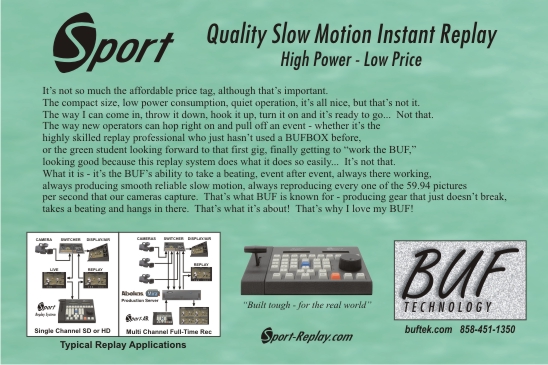
Effective Slow Motion Instant Replay
|
|
|
BUFTEK Controllers - Even More Robust!
The favorite transport functions
controllers for video and file-based QC, live record and playback, and
slow motion control have been upgraded to be even more robust than
before. BUFTEK controllers are highly acclaimed for their excellent
robustness and reliability. However, BUF Technology believes that there
is always room for improvement, and through careful analysis of the
controllers’ extensive real-world experience, two areas have been
identified that would benefit by design changes: the keyboard and the
optical encoder.
First, the excellent low profile
Cherry keyswitches are being replaced by the even stronger and quite
legendary Cherry MX Series keyswitch, which has a virtually
indestructible keyshaft. It turns out that on a few occasions during
years of use, a few keyswitches have broken in the line of duty. This
will happen no longer with the MX Series. Secondly, as part of the new
keyboard design, the third-party optical encoder (knob guts) is being
superceded by a proprietary BUFTEK design that uses much larger optical
features and greater electrical and optical safety margins to improve
reliability. The new knob design also implements heavy-duty
ball-bearings that are stronger than the bushings formerly used, and
provide an improved knob feel.
Keyswitches
Although BUFTEK controllers have
always used high-quality Cherry keyswitches, the new redesign implements
the classic MX series of Cherry keyswitches. These switches are the
favorite choice for high-end keyboards used by serious gamers and have a
rated lifetime of fifity-million actuations - that’s five times better
than the original Cherry low profile keyswitches used in the previous
design. Those BUFTEK users that have managed occasionally to break a
switch’s keyshaft will be pleased to hear that the MX series uses a
much stronger keyshaft that is virtually unbreakable. The MX has a
similar feel, but has a bit longer stroke and requires a slightly lower
actuation force.
Tactile Keyswitch Option
To keep operator fatigue to a minimum
during those long sessions, BUFTEK controllers have always used smooth
actuating keyswitches. But for those operators who prefer a tactile
"click" to their keyswitches, the -T option is available that
substitutes MX Click or Soft Tactile keyswitch models. There is a
nominal cost for this option that is non-refundable.
Optical Encoder (Knob)
The feel and strength of the BUFTEK
controllers’ knob has been improved, while keeping the basic
performance characteristics that operators prefer. A new heavy-duty
ball-bearing system adds "spin-and-grab" operation and the new
proprietary optical system means no more occasional third-party
component failures.
These improvements are available as
standard on all new BUFTEK VTC-4000, VQC-3000, and Sport replay
controller models. With our "Refurb" program, older
controllers can be upgraded for an additional cost.
|
BUFsport
Companion Software for Sport
Replay Systems (Price: $995)
Finally,
the favorite affordable high performance slow motion instant replay
system gets a bigger display! How big? Limited only by the
size of the screen on the MicroSoft Windows PC connected to it.
Not a built-in, compromise display locked into today's technology,
instead BUFsport takes advantage of the latest advances in
display technology and economy of scale offered by general purpose
computers. So as the PC is upgraded, so is the instant replay
system. BUFsport also benefits from the computer's power
to manipulate, sort, process, store, etc., but if the computer has a
problem and/or needs a reboot, Sport still operates standalone so
there's no downtime!
-
Cue
points listed two-dimensionally in a window, including clip, IN,
OUT DUR, etc. Automatically updated whenever marked or
trimmed.
-
Play
lists (up to ten in Sport), each show in their own window
-
Copy,
paste, or drag & drop cue points into and between play lists
-
As
soon as a change is made, it's automatically inside Sport, ready
to play
-
A
double-click on any cue point or play list step instantly cues for
playback
-
Type
comments, including programmable single-keystroke keywords
-
Search
comments or other fields to find similar plays or players quickly
-
Save
cue points and play lists for recall when changing Sport-HD disks
-
Works
with Sport-HD, SD Sport, and other Sport controller products.
To make
BUFsport work on your system, just order it and send your unit in for
a Refurb-SP upgrade. You also need a TBar if you don't already
have one.
See the PRICE LIST for costs and always feel free to call or email.
|
|
|
 |
|
|
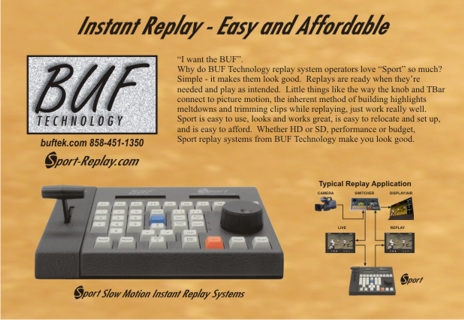
Affordable High Performance Slow Motion Instant Replay - Cost
Effective Path to HD
Many sports producers continue to operate in standard
definition, often using a 16:9 wide screen aspect ratio. When done
well, most viewers don't even know they're actually watching SD. But
because most HD capable equipment is not much more expensive than
SD-only counterparts, purchasers tend to resist anything that cannot
also operate in HD. However there are some components, like slow
motion instant replay systems, that cost much more when capable of
high definition.
BUF Technology (BUFTEK) produces replay systems that
are popular for their low cost, high performance, and ease of use.
However, the HD versions are more than twice the price of SD. This is
due to the high cost of HD disk recording that is capable of useful
slow motion. HD recording has become commonplace and inexpensive, but
only for normal speed playback. "Interframe" or "Long
GOP" compression methods like MPEG are used to reduce data rates,
and therefore cost, but degrade the picture in a way that, even if
slow motion playback is possible, is not suitable for slow motion
applications. Some less expensive replay systems use these recording
techniques regardless and sometimes employ interpolation that results
in pictures that did not actually come from the camera!
Beware of interpolation! Features in the picture cannot be
relied upon to appear where they actually occurred in real life, and
can even disappear completely! Replay systems that use these
techniques should never be used in applications where the truth is
important, such as officiating replay. And "low cost"
systems that employ MPEG tend to be fairly expensive anyway, generally
having a higher price tag than BUF Technology systems.
BUFTEK knows a lot about officiating replay, having
played an instrumental part in the design and production of the
original "FORCE" officiating replay
system used in professional football. In fact BUFTEK coined the name
"FORCE". Even with their low cost, all BUFTEK Sport replay
systems record and reproduce exactly the same images the camera
produces; interpolation is not needed or used. An important aspect of
this is the need to record and reproduce all 60 pictures per second
that the camera provides (actually 59.94 per second, or 50 in Europe
and many other regions). Systems that use interpolation often only
record half the pictures from the camera, then further compress and
distort using Long GOP recording! That's why they use interpolation,
otherwise the slow motion playback would look too jerky.
New upgrades to Sport allow the purchase of
affordable SD replay today with an upgrade path to HD tomorrow.
The controller portion of Sport is a significant part of the cost, and
is now capable of being used to control HD recorders purchased later.
This offsets about 25% of the cost of a later HD upgrade, and that is
at today's prices, likely to come down in the future as HD technology
becomes less expensive. This makes it practical to migrate to disk
based slow motion now, giving producers the high performance, low
operating cost, and ease of use it offers. Using videotape for replay
is cumbersome and puts a lot of costly head hours on VTRs that
continue to be needed when tape is appropriate. And Sport is logical
and easy to learn; it doesn't require operators to attend special
classes to become proficient!
BUF Technology Sport replay provides an excellent
return on investment, even if only the minimal expenditure of
standard definition Sport is made initially. Effective slow motion
instant replay adds value to any sports production, and Sport makes it
simple and affordable.
|
|
|
New for VQC-3000's
and VTC-4000's
Improved control of
BlackMagicDesign Hyperdeck* recorders.
Newest firmware includes workaround to fix status reporting
idiosyncrasies.
Free automatic TC
"Typing" Keystroke Utility included (as always) with
BUFclips Video Server Clip Management Software
and ask about new optional clip-related features for the HyperDeck
and
VDCP server control support for most video servers.
* Hyperdeck is a
trademark and/or copyright of Blackmagic Design Pty. Ltd.
|
|
|
New in BUFMC
Great new features have been
added, including a new easy way to create device icons using pictures
from virtually any source (cell phone camera, etc.)
|
|
|
Click
Here for Sport Replay Tips
|
NEW!
Firmware upgrade for existing Sport Replay Systems
adds important new features!
 |
Control multiple SD and/or
HD Sports with one control panel.
|
|
Control RM-HD1 Replay
Recorders with existing SD Sport for affordable move to HD.
|
|
Adds many new features,
including:
|
Exclusive Variable
Mark Backtiming saves time making perfect cue points.
|
|
Clip based recording
maximizes flexibility of selective delete and cue point
reuse.
|
|
Automatic replacement of record cue
points in playlists when re-marked.
|
|
Faster response of two-key
functions - hold-key sampled instantly.
|
|
|
|
|
| Great
Deals on SD Replay!
HD budget not materializing just now?
Many viewers think they're watching HD when it's actually high quality
anamorphic 16:9 standard definition.
SD is still appropriate for many large format screens, streaming, and
smaller market broadcasts.
Don't want to spend any more on SD, but not loving your current instant
replay?
Ask about our PRICE REDUCTION on the popular SD Sport replay system with
SDI!
Now, disk based instant replay is more affordable than ever - join the
massive group of BUF Sport lovers.
Still doing replay on tape?
Save those expensive VTR head hours for when you actually need to
deliver a tape.
Sport is a great, yet affordable replay system, and doubles as a general
purpose server for
virtually any short term recording task, further maximizing its
excellent return on investment.
Speed up your replay while increasing image quality.
Build highlights effortlessly while replaying - ready to play and/or
layoff as soon as the game's over.
Zero operational costs after purchase - very low power consumption and
heat production, small and quiet.
Sport is very easy to learn - ideal for student or other high turnover
operators - great teaching tool.
Increase revenue by offering your guarantee to play advertiser bumpers
in and out of every replay (see TBar)!
Upgrade path when you're ready for HD - an SD investment that still has
value when you go HD. |
|
|
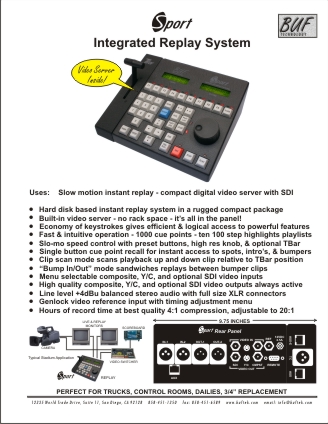
Popular "Sport"
Replay System
Hard Disk Recorder right in the Panel
|
Comments from Sport owners:
"Sport
really is just the best replay system out there at any price - and
it's [inexpensive]!"
"Very happy with it - it works perfect!"
"Used
it on our first game and loved it. Haven't gotten very deep into the
playlist stuff yet, but will soon."
"Roll-ins
work seamlessly. The operator looks like a Cheshire Cat when
using it and wants 4 of them."
"Would
like to order a couple more Sport-80's because we love them so
much. Put them on Amex."
"Had
an emergency basketball game this weekend, used Sport, and loved
it."
"Just
love Sport. Use it for roll-ins for live TV. Upgrading to SDI,
charge the Amex."
"We
use it for a clip store. It's very fast bringing up a clip. Just
punch in the number and it's right there. All our crowd reaction stuff
is done on it. Best six grand we ever spent."
|
|
|
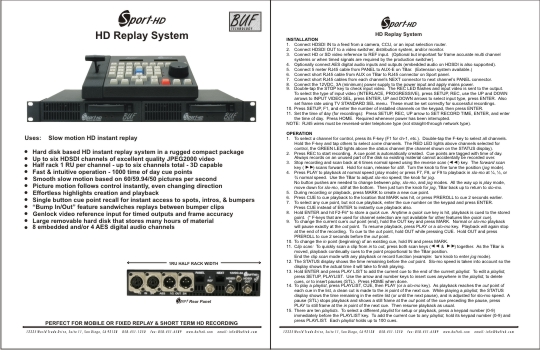
Sport-HD
Replay System
Multi Channel Hard Disk HD Replay
|
|
|
Simplicity:
Slow motion instant replay works best when done in a simple way.
Lots of features look impressive during a demonstration, but tend to
overwhelm operators, bogging down the important tasks. A relatively
simple set of basic features are what the operator really needs and
will actually use in practice. Having too many bells and whistles is
like packing too much for a quick trip. In live production, especially
instant replay, speed is of the essence.
BUF Technology's "Sport" replay systems implement a basic
set of tools most useful to the job, and present more advanced
features in an inherent way that keeps the complexity mostly hidden
from the operator. The result is very fast and effective live replay,
and effortless creation of highlights packages that are ready to play
at any time. Sport is easy to learn, making it ideal for student
operators, where operator turnover tends to be high. And Sport
performs better than any other replay system on the market, and at an
affordable price.
Editing is complicated and takes time, so is best done post
production when time is available. However, for highlights creation
purposes, basic editing is beneficial to the replay process as long as
it doesn't take too much time and attention away from the primary task
of live replay. Sport makes it practical for the live replay operator
to create the highlights package by simplifying the way it is done.
Two basic tasks are required to create an effective highlights
package, marking clips (cue points), and placing them in the timeline
of the highlights package. Sport implements the marking of clips in a
highly effective way, and facilitates placing them into the highlights
package inherently in chronological order.
Making the highlights is easy, Sport allows the most recently
created clip to be placed at the end of the clips already in a
particular playlist of clips with a simple keystroke sequence, namely
hold ENTER and hit PLAYLIST. This results in a natural order of
highlights elements with very little effort. When a clip is entered
into the playlist, it doesn't need to be perfect. Sport makes it easy
to tweak afterwards, while it is being played live for replay. So the
operator needs only to decide whether the action being viewed is
worthy of inclusion in the highlights package and add it to the
playlist. The real time consumer (normally) is getting the clip just
right.
Clips, or cue points, are snippets of action defined by timecode
beginning "in" and ending "out" points. Although
these points are referenced internally by timecode numbers, the
operator makes these decisions based solely on the visual action and
need not be concerned with timecode. A MARK key creates a new cue
point, or clip, at the current playback or record position (the
displayed video frame). Since action worthy of replay can't be known
until after it has begun to occur, marks made during recording must be
trimmed back after being marked. Normally this is done by cueing to
the marked point, backing up, then re-marking the point. To save time
and make initial marks more accurate and often perfect, BUF Technology
proudly introduces Variable Mark Backtiming or VMBT. VMBT uses
a simple technique to allow the operator to back-time the point being
marked by a variable amount. When the MARK button is first hit, it
captures the current timecode as usual, but if it is held down,
the duration of time it is held is measured and subtracted from the
initial timecode to create the back-timed point. Essentially, the
timecode runs backwards while the button is held down. VMBT takes
advantage of the human mind's ability to estimate how long ago
something happened and to duplicate that period of time fairly
accurately. This feature works very well with little practice,
allowing operators to make perfect cue points on the first try most of
the time. Even when imperfect, marks tend to be close, speeding up the
time required for trimming.
Sport replay systems concentrate on the tools a replay operator
really needs and uses. Highlights are quick and easy to create without
slowing or distracting from the primary task of live replay. A simple
operational methodology makes Sport's learning curve short, meaning
operators spend time on the job, not in class. Sport is built tough,
able to come through consistently and survive years of the hectic life
of live production. All this and an affordable price makes Sport the
best choice for the limited replay dollar.
|
|
|
Sport Replay Tips
Playlists - Fast and Easy Highlights
You may or may not already use the playlist feature of
your Sport or Sport-HD replay system.
These simple steps can help you to streamline the way you use this
powerful tool:
1. During recording, when you see action worthy of the highlights
package:
Hit MARK, then hold ENTER and hit PLAYLIST - this makes a clip and puts
it into the highlights playlist.
2. Once the action is over, hit CUE or PREROLL to cue for replay. Turn
the knob (jog) to tweak where the clip should ideally begin.
3. Hold ENTER and hit MARK (see NOTES below) - this changes the start of
the clip to your tweaked location (IN point), and inherently also fixes
it in the playlist.
4. Play the replay (on air). If playback doesn't stop at the ideal time,
hit STOP and jog to a better location, then hold OUT and hit MARK - this
tweaks the OUT point.
By following these steps while doing replays, a
"cuts-only" highlights package will be ready to play as soon
as the game is over (just hit PLAYLIST, CUE, PLAY and ride speed as
desired).
Capturing for Editing and Streaming
The fastest and easiest way to get video from Sport into
your editing system is simply to capture the playback of a playlist of
selected clips. If you use any slow motion effects in your edited piece,
you can improve the look of your product by taking advantage of Sport's
capabilities: After you capture the playlist, capture it again while
playing the playlist at half (50%) speed. Name the slow motion clip with
the same name followed by "slow" or "50". When you
want to edit a slow motion segment, rather than slowing the segment down
with your editing software, use the already slowed down version from the
slow motion clip. It will be located at the normal speed clip's TC times
two, so if the full speed segment starts at 00:01:20:00, the same
segment on the slow clip will be at 00:02:40:00. If you want to slow it
down further, use the editor to slow down the 50% footage (e.g. slow to
50% to get 25% of real time). The idea is to use all the pictures that
the camera provides.
Why bother to do it this way? Because most video capture
systems only record 30 frames per second, so when you slow to half speed
for instance, you get a jerky and amateur looking 15 FPS. BUF Technology
Sport replay systems record all sixty pictures per second that the
camera provides, so at half speed you get a smooth looking 30 FPS. By
capturing Sport's half speed playback, your slow motion edited segments
will have that same professional look and feel.
NOTES:
For step 1 above, you must first make sure the
"setup playlist" is the same one you will be using for
highlights (typically zero). There are ten playlists, any of which can
be selected independently for "setup" and/or
"playback".
To select a playlist for setup:
Hit SETUP, a keypad number 0-9, then PLAYLIST. Anytime you hold ENTER
and hit PLAYLIST, the current cue point (the one on the MENU display)
will be added to that playlist. You can also hold 0-9 and hit PLAYLIST
to add the current cue point to any of the ten playlists. While in
playlist setup mode, follow the icons to change the displayed step,
delete a clip, or add a "still" step. A clip can be added at
any step by simply entering its number. When done, hit HOME to exit the
setup mode.
To select a playlist for playback:
Hit a keypad number 0-9 (don't hold it in), PLAYLIST, then CUE. The
selected playlist is cued for playback. Hit PLAYLIST again to exit the
playlist mode. The next time PLAYLIST, CUE is hit (without hitting a
keypad number first), the last used playlist will be cued for playback.
Step 3 above - Hold ENTER and hit MARK: This works only
with newer firmware versions. Previously, you had to hold IN (UP arrow)
and hit MARK - the new way was added because it is easier to reach.
Refurbishment
If your Sport replay system is more than a couple of
years old, we recommend taking advantage of our "REFURB"
program. For a reasonable charge, your Sport is completely disassembled,
cleaned, and reassembled. New firmware is installed and all factory
tests are performed. Any broken parts are replaced for half their
regular price (certain parts are excluded). A REFURB-SP will make your
Sport almost like new - hit PRICE LIST for pricing.
|
|
|
Video Q.C. Operators:
If you carry your PC around to different facilities,
you'll want to upgrade to the latest version of the (FREE) BUFclips
utility.
Why? Because of all the nice new features it offers.
Download it, run it, then read the BUFclips.xml file it makes.
You can customize lots of stuff to make it save you more time
including multiple character delimiters (allow hours, minutes,
seconds, frames to be in separate spreadsheet windows, etc.), lots
more hotkey phrases (single button access to miscellaneous words you
use a lot), and the ability to send a cue command to any timecode in
the Windows clipboard (regardless what application it was clipped
from).
There's also a bunch of stuff in there you probably
won't use. Like BUFclips' VDCP protocol capability that controls
many video servers just like a VTR. You can load clips on your
PC, setup playlists, and control the picture and extract timecode like
a VTR (well, jog/shuttle is dependent upon how well the server can
perform). These features are enabled by installing an optional
USB Dongle, call us if you're interested. Please let your
customers know that server Q.C. can be done with the speed and ease
they're used to.
SRW-5800 - you may have noticed that, due to picture
breakup, JOG mode is unusable on some SRW-5800s.
Contrary to popular belief, this is not some lack of DT, it's just a
little firmware bug in the VTR.
BUF has a workaround: VQC-3000 and VTC-4000/RM-4000 firmware
revisions 100121 or later have a menu that, when enabled, sends
variable play commands in lieu of jog commands when in JOG mode.
JOG still works the same, it just substitutes the command sent to the
VTR. The result is that the SRW-5800 works exactly as well as
the SRW-5500 when jogging. The menu to enable is (SETUP, SETUP)
OPER PREFS, JOG USE VP CMD.
|
|
|
Video Q.C. Keystroke Utility Works with Window's Vista & 7
The free PC timecode keystroke entry
utility for BUF Technology QC controllers now works with Microsoft's
Vista and "7" operating systems. The popular "BUFkeys"
utility program is replaced by the new "BUFclips"
software offering the same keystroke issuing capability in addition to
new features.
The new BUFclips may look somewhat
complicated, but it is really very simple to use. The new clip
features are activated only if you purchase and connect the USB "Dongle"
security key to your PC. These features allow the VQC-3000 or
VTC-4000/RM-4000 to control VDCP protocol servers in addition to Sony
protocol VTRs. It adds support for almost all servers including Grass
Valley/Thomson/Tektronix, Harris/Leitch/ASC, Omneon, Seachange, FFV,
Doremi, and many more. It allows you to manage and load clips and
perform other clip related tasks.
But if you only need the keystroke
utility that you had with BUFkeys, use BUFclips without the Dongle,
and the program runs in "free mode", providing the same
keystroke features as BUFkeys, except it uses a different and more
universal technique to issue keystrokes. It works with all known
versions of Windows, including Vista and "7". As with
BUFkeys, you typically need to run BUFclips "as
Administrator" for it to work. To use VDCP and the other new
optional features, you need to update the EPROM in the panel (as well
as purchasing and installing the Dongle). However, older versions of
VQC-3000 and VTC-4000/RM-4000 firmware do work with BUFclips.
To use BUFclips with older (before
091116) VQC-3000 or VTC-4000/RM-4000 firmware versions:
1. Download and install the program
(skip the Dongle drivers install step as instructed).
2. Run the program and hit the QUIT
button - this creates the BUFclips.txt file.
3. Edit the BUFclips.txt file with a
text editor, search for BAUDRATE= and change the value from 38.4K to
9600.
BUFclips will work just like BUFkeys
and reacts more quickly in addition to other enhancements.
Importantly, BUFclips will issue keystrokes to all known versions of
Windows, including Vista, adding support for most laptops.
Click here for more
info about BUFclips.
|
BUFclips Video Server Clip Management Software
BUFclips supercedes BUFkeys video Q.C. keyboard
utility
Still FREE keystroke features - now works on Vista and 7!
Optional features add:
VDCP Protocol support to existing BUF controllers
~ Displays all clips available on server
~ Loads clips for playback
~ Drag and drop clips into play lists
~ Jog and shuttle control with companion VQC-3000 panel
|
Don't Replace - Refurbish!
You have made the right choice purchasing BUF
Technology controllers/replay systems. Because they last
forever! If you are in the club of experienced BUF users, you
know how long they hold up and how much punishment they can
take. But everything ages eventually and we would love for you
to purchase our newest model. However, sometimes if it works for
you, why spend money needlessly? Instead take advantage of our
"Refurb" program: For a nominal charge, you can make
your BUF controller almost like new again. We disassemble it,
clean it, update it, reassemble it, and run it through our factory
tests.
Don't leave money sitting on the table, refurbish!
|
|
|
A BUF Sport Story:
(The Demo)
Love it. Like the ability to
record a 3 hour meeting. It's really an impressive unit. Used it for
football yesterday and had a play where there was a turnover, but they
couldn't tell how it happened, how their guy got the ball. They looked
at the recording on Sport this morning and were able to see exactly
how it happened with ease. Phased it into the switcher in a couple of
minutes and love the interface. One of our guys who deals with
purchases saw it and he says he'll recommend it to the board.
(Later after the purchase)
The Sport Replay is a favorite
of our announcers because of the quick turnaround of the video. They
frequently ask to see replays or even still shots of plays. We used a
still shot the other night when the team got called for lining up
offsides. The still picture clearly showed the player way ahead of the
line of scrimmage.
When we are not using the Sport Replay in the van for sporting events,
it is connected to our control room for B-roll video. Because our
crews are 100% volunteer, we do not always have a full crew. The Sport
Replay is so easy to use, the director usually cues and plays the
B-roll video him/herself.
It was great meeting everyone from Buftek at the show in Marlboro, MA.
Keep up the great work!
Regards,
Dennis
Dennis Bergeron
Program Manager
Holliston Cable Access, Inc., Holliston, MA
|
|
|
|
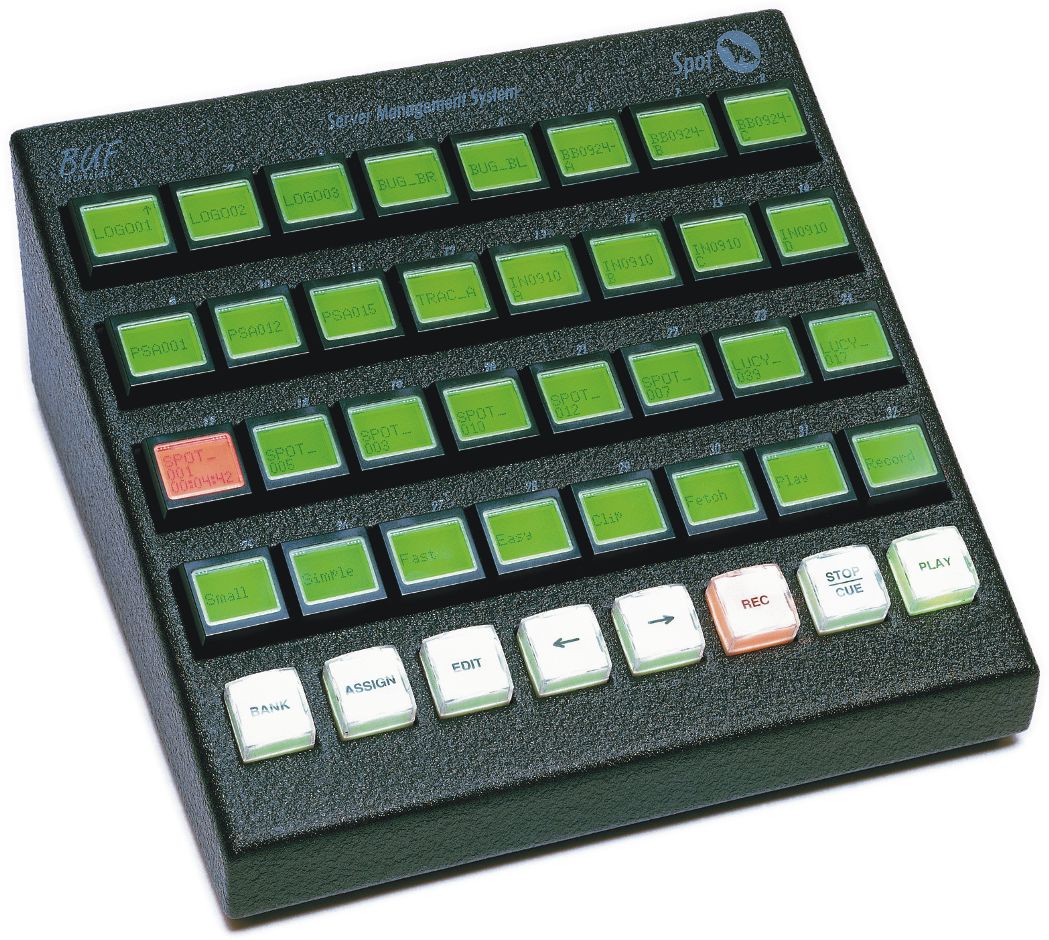
"Spot"
Video Server Controller
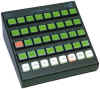
-
Powerful yet simple control
of video servers
-
One touch playlists and
loops
-
Store, recall, and
configure panel setups on PC
-
Controls 8 server channels
and 2 VTRs
-
Frame accurate ingest from
tape
-
Multi channel recording and
playback
|
BUFMC
Routing Switcher Control System
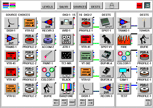
-
Affordable control of
routing switchers using PC computers
-
Fast and easy - touch
screen or mouse
-
Easy to set up using
engineering GUI
-
New built-in
spreadsheet-type data display with copy/paste
-
Controls many routers from
many PCs
-
Control via existing
network
-
IR device control option
-
Routing and IR command
scheduling
|
|
|
|
VQC-3000
"BUFclips" Software Upgrade for Video Server Control
The capabilities of the VQC-3000
video Q.C. controller have been expanded to enhance video server
support. Full technical and visual Q.C. (quality control) is performed
routinely on high end programming, particularly long form programs such
as major motion pictures prior to delivery to broadcasters or before
encoding for DVD. Defects such as film scratches, specks, hairs, digital
hits, noise, and compression artifacts often can be detected only by
human visual observation. A high performance controller is usually
employed to speed the process, saving time and money. The Q.C. operator
watches the programming in real time and has complete and instant
control over picture motion allowing questionable segments or frames to
be identified frame accurately and documented in a Q.C. report for later
repair. Programming generally is transmitted by videotape, sometimes
using superior formats like Sony's HDCAM-SR. However, more and more
programming is being recorded, post produced, and delivered entirely as
file based objects, never leaving the domain of video servers.
To support video Q.C. operations
using file based systems with minimal adjustment to current procedures,
we have introduced "BUFclips", a software program that runs on
a PC connected to any new or existing VQC-3000 video Q.C. controller.
The system controls video servers using VDCP (video disk communications
protocol - formerly "Louth Protocol"), a "9-pin"
RS-422 protocol common to almost all video servers. VDCP is to video
servers as the "Sony 9-pin" VTR control protocol is to
videotape recorders. BUFclips displays clip names reported by the server
and features one click clip loading and jog/shuttle control essentially
identical to that of VTRs (depending on the video server's capabilities
and file format limitations, e. g. "long-GOP" compression
formats like some forms of MPEG tend to play with rough motion in
reverse). Long clip names are supported. Other features such as drag and
drop playlists are also included.
In addition to its video server
related features, BUFclips also facilitates automatic timecode entry.
When problem frames are identified by the operator, the timecode number
must be entered into the Q.C. report. Manual entry of timecode numbers
takes time and is prone to errors, so we developed a system for entering
the numbers automatically via a serial connection between the controller
and PC. Because this feature could only be used with custom Q.C. report
software, we developed BUFkeys, a software utility that allows the
numbers to be entered into any program as though typed on the keyboard.
A simple F-key keystroke either on the PC or the controller
"types" formatted timecode wherever the "caret"
(keyboard cursor) is located. Any program that would normally receive
keystrokes typed on the keyboard, receives the timecode, and formatting
is easily customized including pre and/or post characters, drop frame
indication, etc. This allows exact timecode numbers to be entered
quickly and accurately into any program running on the PC including
popular spreadsheet, database, and word processing programs. BUFclips
includes all the features of BUFkeys and runs on all versions of Windows
(98SE or later). Also new for BUFclips is that it works on the Vista
operating system (Windows and Vista are trademarks of MicroSoft
corporation). Since Q.C. rooms commonly already have a PC running
BUFkeys, it is simply a matter of replacing BUFkeys with BUFclips and
updating the firmware in the VQC-3000 to upgrade an existing Q.C. room
to file based Q.C.
Any new or existing VQC-3000 will
work with BUFclips - existing VQC-3000s require a firmware update.
BUFclips is available for half price when purchased with a new VQC-3000.
Click
here for Press Release format
|
|
|
A Note About BUFTEK Software:
All BUFTEK software products run lean-and-mean and do not slow down
or otherwise negatively affect your computer. To completely uninstall
a BUFTEK software product, simply delete the folder it's in. No
residual files or data (such as Registry keys) are left on the
computer that could cause adverse cumulative effects.
That's why BUFTEK software products install, by default, in the C:
drive root directory instead of the Program Files folder, because most
programs that reside there require an uninstall program to delete
them. And sometimes uninstall programs fail to remove all references
from the system Registry or elsewhere, slowing down your computer
forever. When not running, BUFTEK software does not affect a computer
in any way (other than the disk space it occupies). And if deleted,
there are absolutely no residual effects. Of course, BUFTEK software
can be installed wherever you like, including in the Program Files
folder.
To install a BUFTEK software product, download and unzip (extract)
the files into a folder or onto the desktop, then launch the Setup.bat
file (double-click Setup). You cannot run Setup from within the zip
file, you must first extract it. Setup creates a folder by the name of
the product in the root directory (C:\) and extracts all the necessary
files and folders into that folder. It does not place data or create
files anywhere else, so deleting this folder will completely remove
the product and all related data from the computer. Once installed,
the folder can be moved to another location and/or renamed. Some
products, such as BUFMC, allow data to be stored in another location
such as a central server.
For some products, the last installation step installs drivers for
a USB "Dongle" security key. If features that require the
Dongle are not required, or the Dongle drivers are already installed,
this step can be skipped (instructions for doing so are displayed).
The Dongle drivers can be uninstalled using the Windows* Control
Panel: System, Hardware, Device Manager. In "USB",
Delete "USB Dongle - Software Protection Device". The Dongle
must be installed to see this. The driver is typically installed in
C:\WINDOWS\System32\DRIVERS\USBKey.sys, and can be deleted manually.
Dongle related Registry keys can be found by searching for occurrences
of "Dongle".
*Copyright Microsoft Corp.
|
| |
|